Serial Communicator Main Toolbar
Clear Clears the contents of either the transmit or receive window.
Open Displays a open dialog box, enabling you to load data into the transmit window.
Save As Displays a save as dialog, enabling you to name and save the contents of the receive window.
Cut Cuts any selected text from either the transmit or receive window.
Copy Copies any selected text from either the transmit or receive window.
Paste Paste the contents of the clipboard into either the transmit or receive window. This option is disabled if the clipboard does not contain any suitable text.
Connect Connects the Serial Communicator software to an available serial port. Before connecting, you should ensure that your communication options have been configured correctly using the configuration window.
Disconnect Disconnect the Serial Communicator from a serial port.
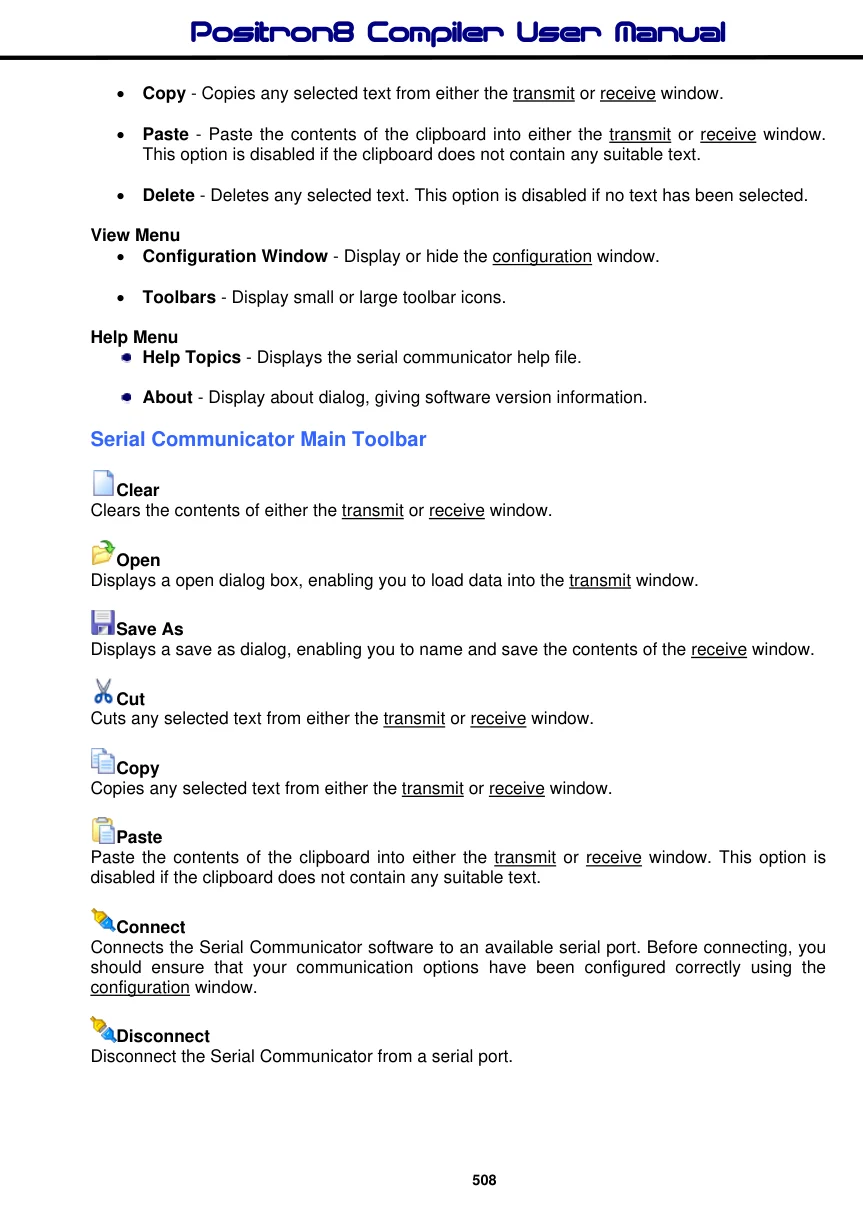
Configuration The configuration window is used to select the COM port you want to connect to and also set the correct communications protocols.
Clicking on a configuration link will display a drop down menu, listing available options. A summary of selected options is shown below the configuration links. For example, in the image above, summary information is displayed under the heading 19200 Configuration.
Favourites Pressing the favourite icon will display a number of options allowing you to add, manage or load configuration favourites.

Add to Favourites Select this option if you wish to save your current configuration. You can give your configuration a unique name, which will be displayed in the favourite drop down menu. For example, 9600 Configuration or 115200 Configuration
Manage Favourites Select this option to remove a previously saved configuration favourite.
Notes
After pressing the connect icon on the main toolbar, the configuration window is automatically closed and opened again when disconnect is pressed. If you don't want the configuration window to automatically close, right click on the configuration window and un-check the Auto-Hide option.
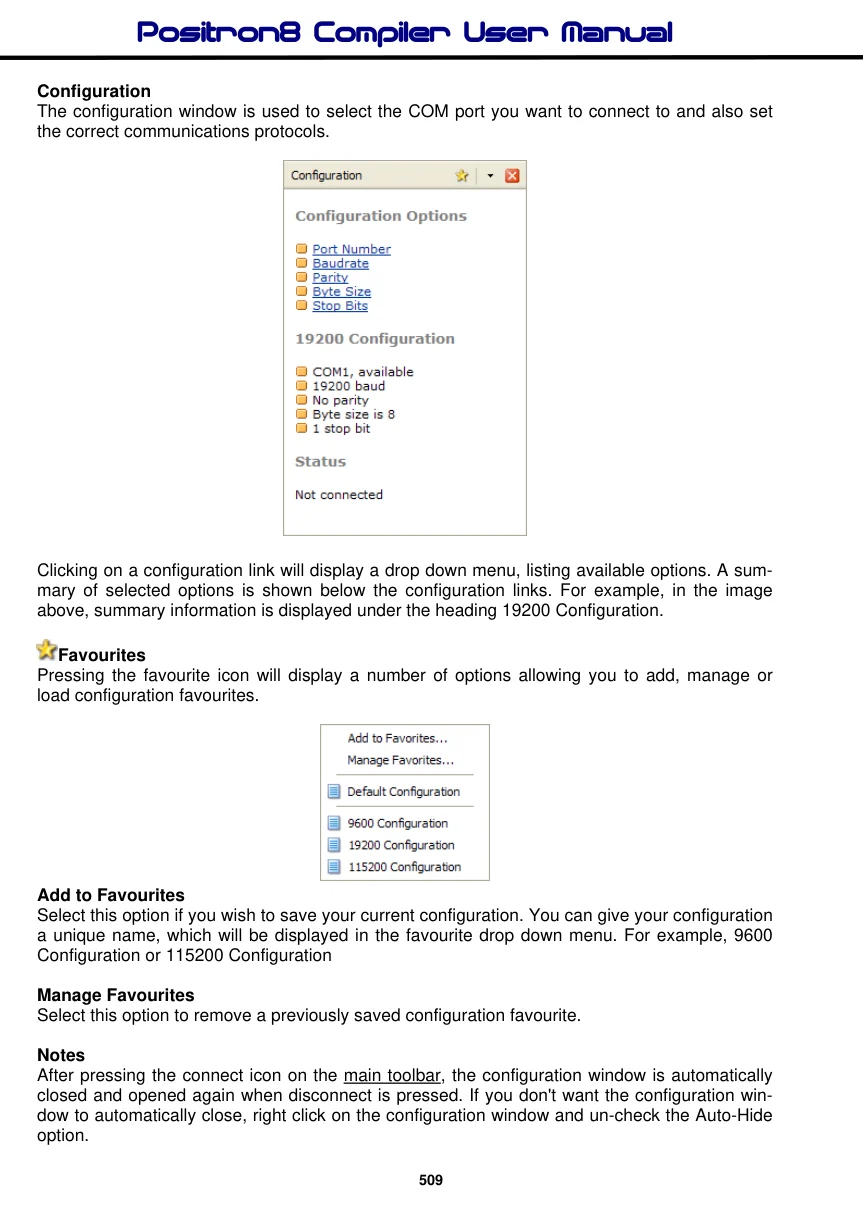
Transmit Window The transmit window enables you to send serial data to an external device connected to a PC serial port. In addition to textual data, the send window also enables you to send control characters. To display a list of transmit options, right click on the transmit window.
Clear Clear the contents of the transmit window.
Word Wrap This option allows you to wrap the text displayed in the transmit window.
Auto Clear After Transmit Enabling this option will automatically clear the contents of the transmit window when data is sent.
Transmit on Carriage Return This option will automatically transmit data when the carriage return key is pressed. If this option is disabled, you will need to manually press the send button or press F4 to transmit.
Line Terminator You can append your data with a number of line terminations characters. These include CR, CR and LF, LF and CR, null and No Terminator.
Parse Control Characters When enabled, the parse control characters option enables you to send control characters in your message, using either a decimal or hexadecimal notation. For example, if you want to send hello world followed by a carriage return and line feed character, you would use hello world#13#10 for decimal, or hello world$D$A for hex. Only numbers in the range 0 to 255 will be converted. For example, sending the message letter #9712345 will be interpreted as letter a12345.
If the sequence of characters does not form a legal number, the sequence is interpreted as normal characters. For example, hello world#here I am. If you don't want characters to be interpreted as a control sequence, but rather send it as normal characters, then all you need to do is use the tilde symbol (~). For example, letter ~#9712345 would be sent as letter #9712345.
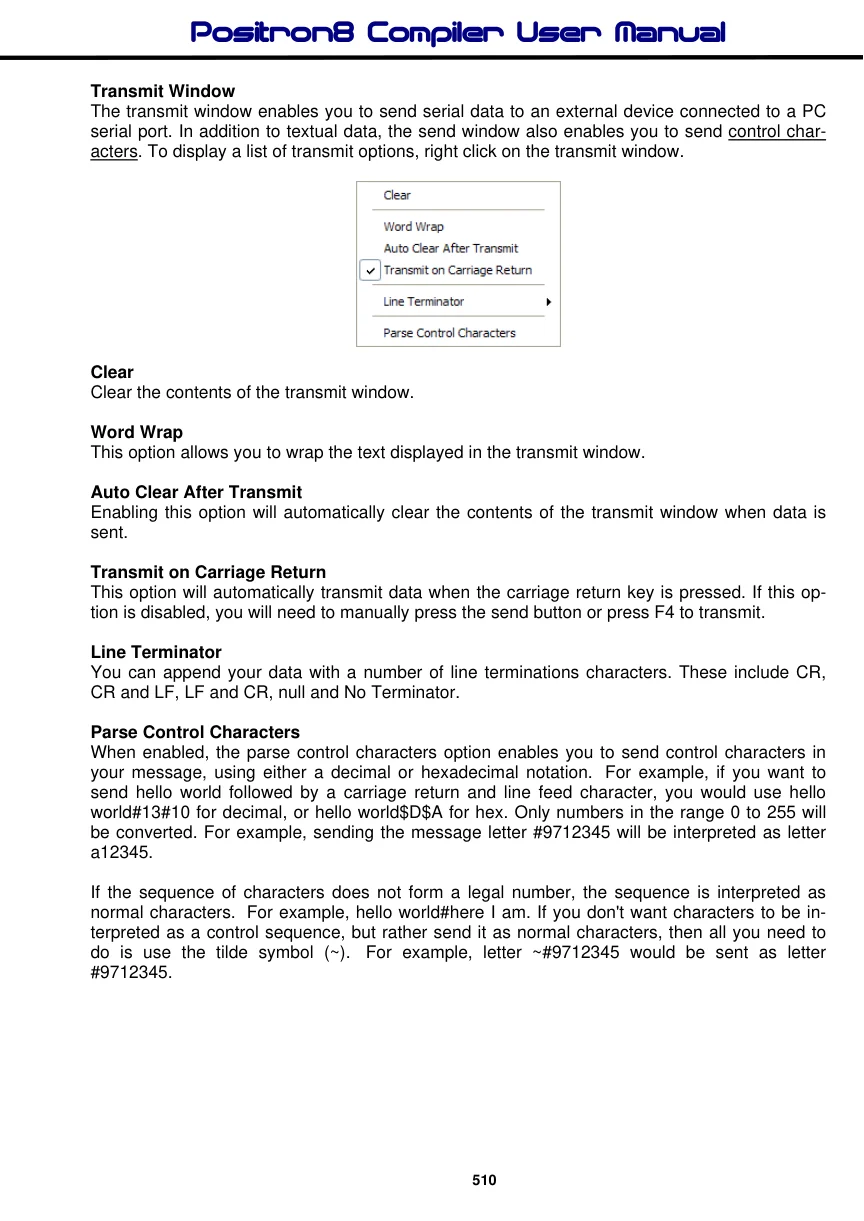
Receive Window The receive window is used to capture data sent from an external device (for example, a PIC MCU) to your PC. To display a list of transmit options, right click on the receive window.
Clear Clear the contents of the receive window.
Word Wrap When enabled, incoming data is automatically word wrapped.
Notes
In order to advance the cursor to the next line in the receive window, you must transmit either a CR