Positron Font Foundry
… visits


Prepare, preview and refine display fonts for Positron BASIC.
Positron Font Foundry converts fonts from your Windows PC into ready-to-use font tables for TFT & EPD Graphic Library 2. Choose a typeface, set the size and character range, inspect the pixels and generate a Positron BASIC .inc file with a matching PNG preview.
It brings fixed-cell SND fonts, BDF-style fonts, pixel editing and batch generation into one workspace. You can make a simple set of digits for a counter or prepare a collection of fonts for an entire display interface.
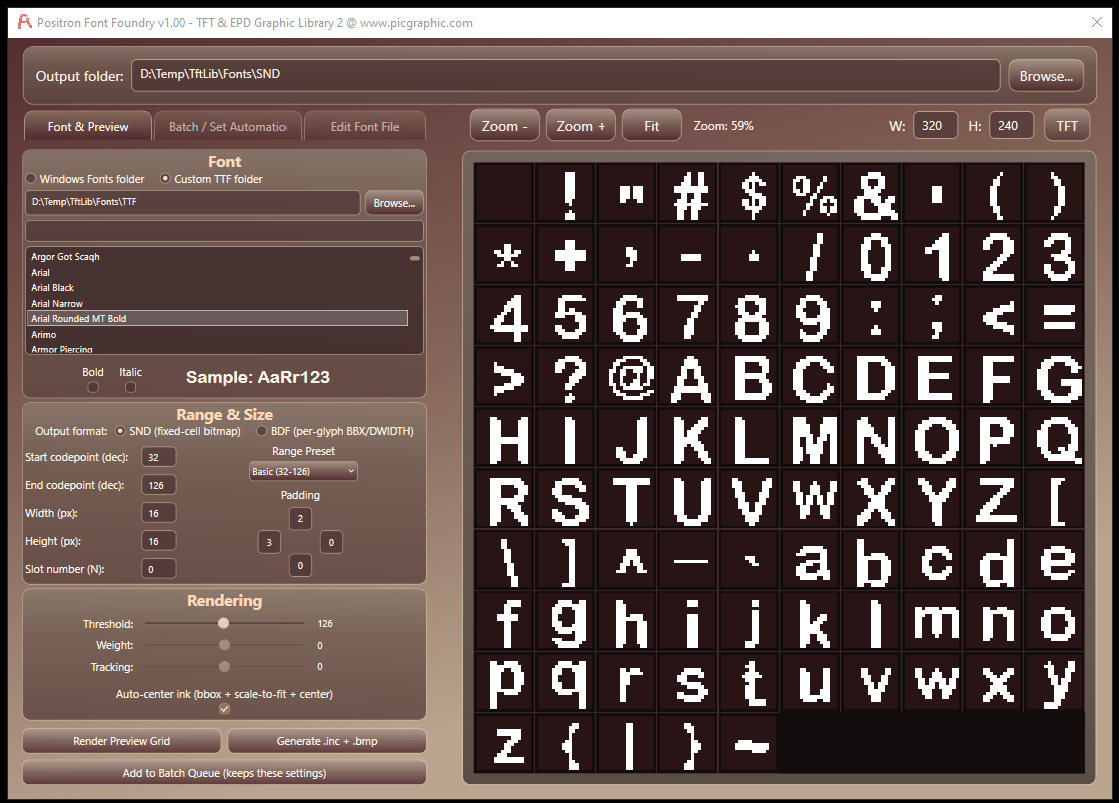
Font settings and the resulting character pixels remain visible together.
Read the User Manual · Compare SND and BDF Fonts
Font Foundry builds on the purpose of Ttf_Bdf_Flash.exe: turning desktop fonts into compact data that a PIC microcontroller can draw. The earlier tool used an otf2bdf.exe conversion stage to prepare BDF data. Font Foundry performs the rendering and table generation within the application, without depending on that converter.
The aim is to make the small decisions easier to judge before a font reaches the display. A letter may need a heavier stroke, a number may need a fixed-width cell, or one character may need a few pixels corrected. You can now make those adjustments, compare the preview and export the result from the same window.
The application also appeared under the development name SndFontGenerator. Positron Font Foundry is the name used in this documentation.
|
Format |
How it works |
Typical use |
|
SND |
Every character has the same rectangular cell and advance. |
Clocks, counters and aligned readings. |
|
BDF |
Each character stores its own ink rectangle, position and advance. |
Labels, menus and proportional text. |
Both choices produce Positron BASIC font tables. The BDF option does not export a standalone .bdf file. For either format, selecting only the characters you need helps keep the output small.
The character grid makes individual shapes easy to inspect. Switch to TFT view for a screen-style preview, or open a character in the pixel editor to turn individual pixels on and off. An exported font can also be reopened and corrected without having its original Windows font installed.
For BDF output, the New and Old engines offer different rendering results. Compare them at the size you intend to use; curves, thin strokes and character placement can differ. Weight and tracking provide further control over the finished font.
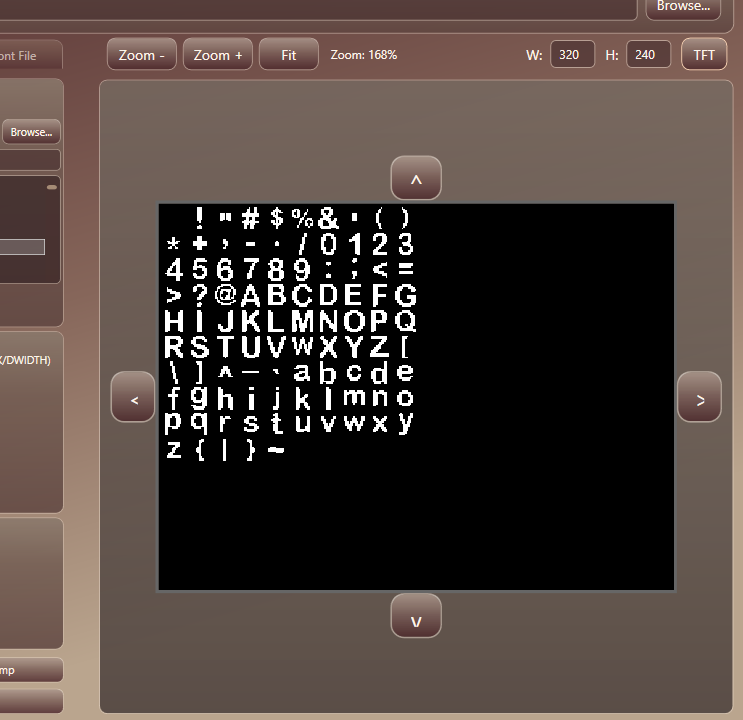
The TFT preview helps assess the font at a display-like size.
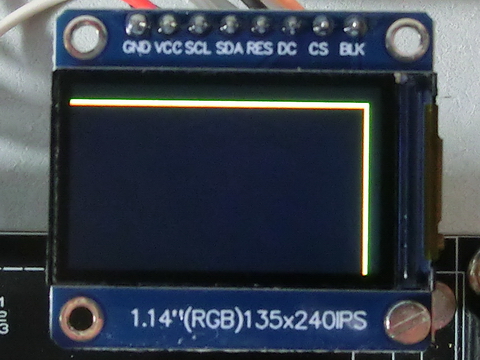
A supplied example of the generated font on a physical TFT. Check final spacing and placement on your own target display.
Preview guide: TFT view has its own spacing, wrapping and line-height rules. Use it to inspect the appearance; the exported measurements and your firmware determine the final layout.
Generate a single font immediately, add individual configurations to the queue, or use Make Set to queue several selected font families. Review the jobs and start them with Run Batch. Each job keeps the settings it had when it was added.
If a set contains more fonts than the selected slot range, you can allow the numbering to repeat. This creates alternatives for those slots. Fonts included together in one firmware build still need distinct slot identifiers.
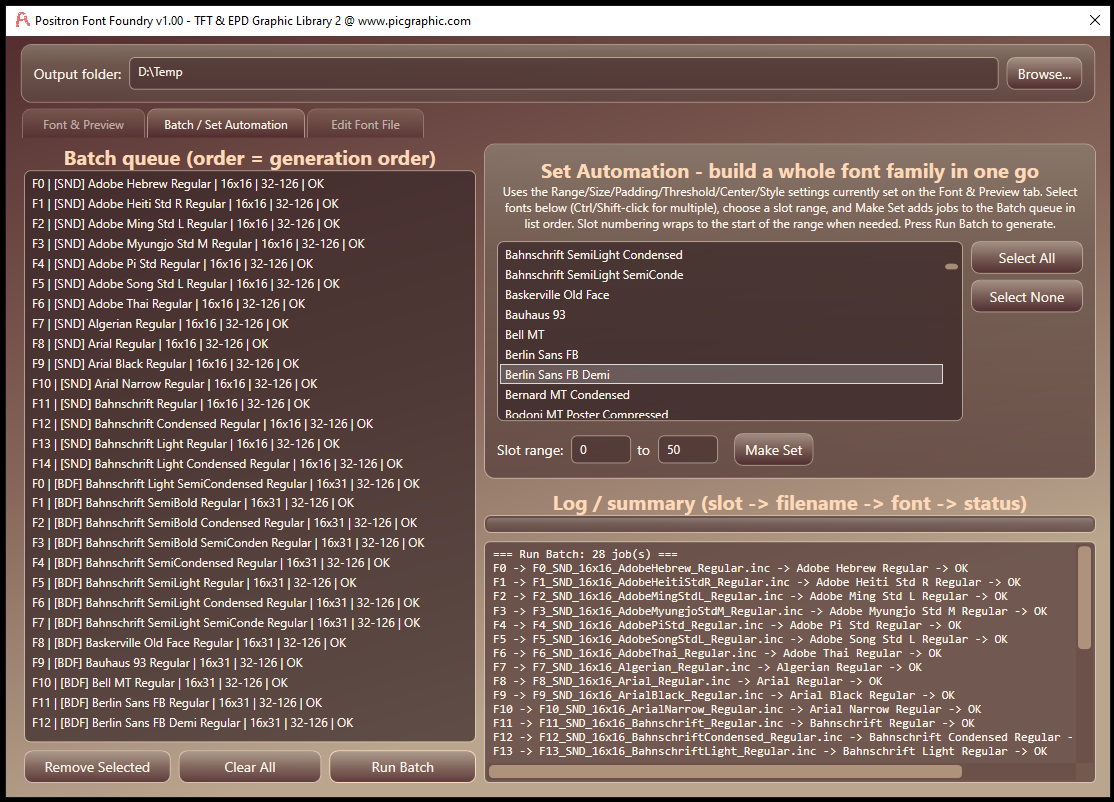
Make Set prepares the queue; Run Batch generates the queued fonts.
Choose a familiar font, select SND or BDF, and limit the range to the characters your display needs. Set a slot, check the preview and generate the files. Once the result looks right on the display, use the same workflow for other sizes and styles.
Created with the Personal Edition of HelpNDoc: Benefits of a Help Authoring Tool