Creating a custom Programmer Entry
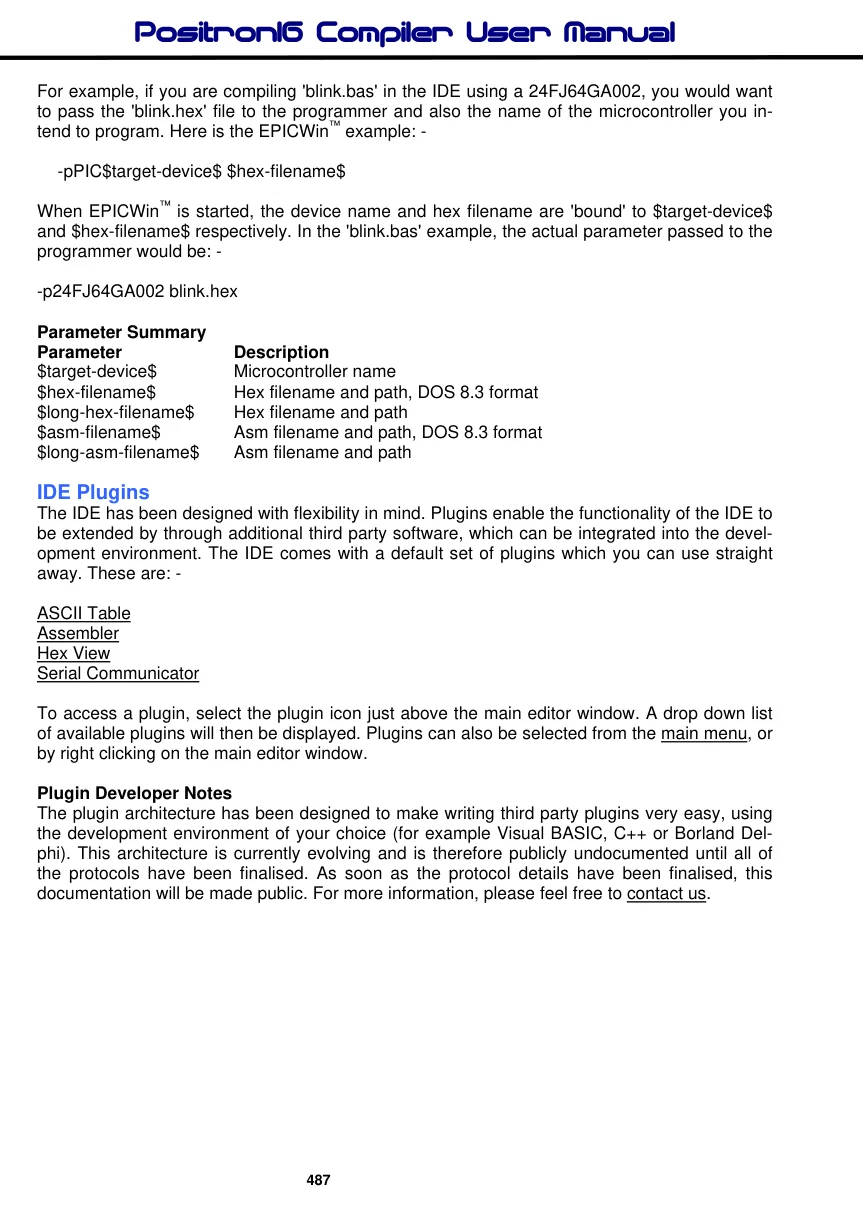
In most cases, the IDE has a set of pre-configured programmers available for use. However, if you use a programmer not included in this list, you will need to add a custom programmer entry. Select View...Options from the main menu bar, then select the Programmer tab. Next, select the Add New Programmer button. This will open the install new programmer wizard. You then need to select 'create a custom programmer entry', as shown below
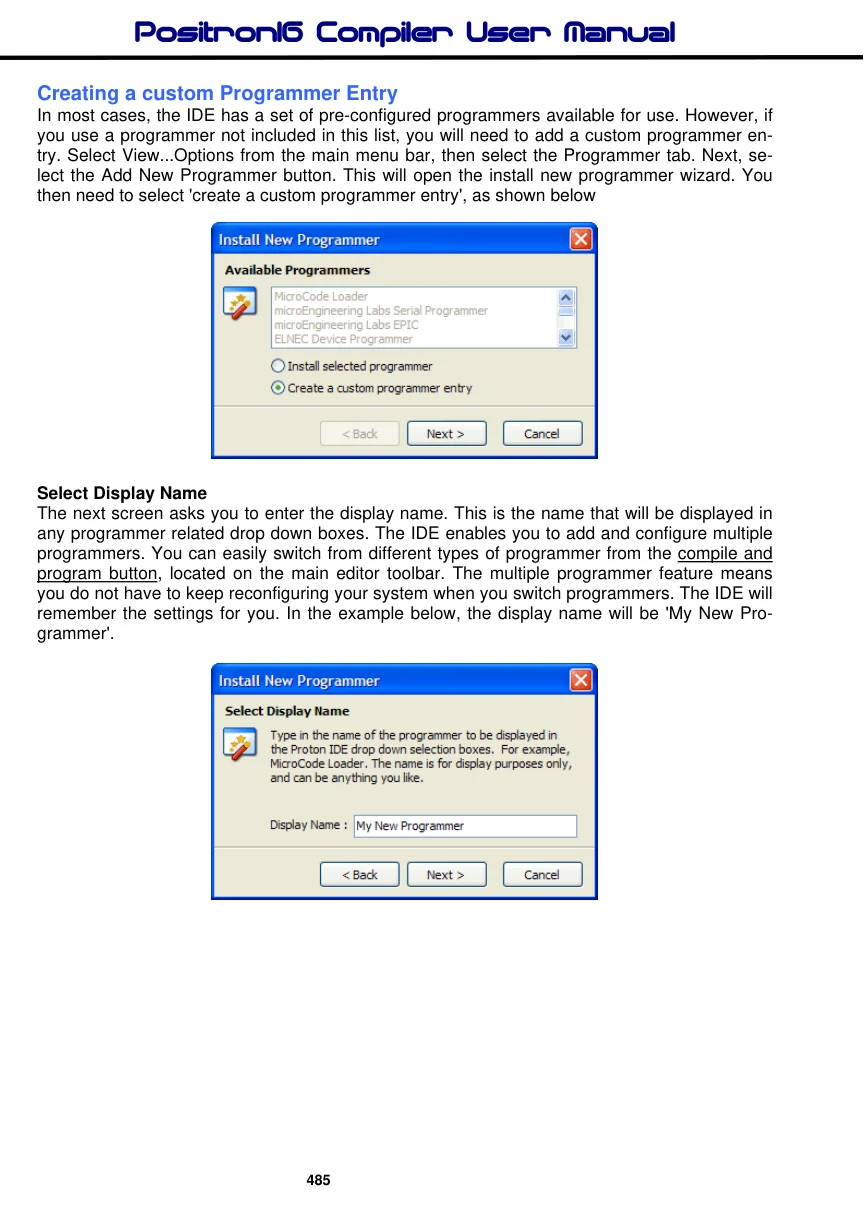
Select Display Name The next screen asks you to enter the display name. This is the name that will be displayed in any programmer related drop down boxes. The IDE enables you to add and configure multiple programmers. You can easily switch from different types of programmer from the compile and program button, located on the main editor toolbar. The multiple programmer feature means you do not have to keep reconfiguring your system when you switch programmers. The IDE will remember the settings for you. In the example below, the display name will be 'My New Programmer'.
Select Programmer Executable
Text in this figure or table
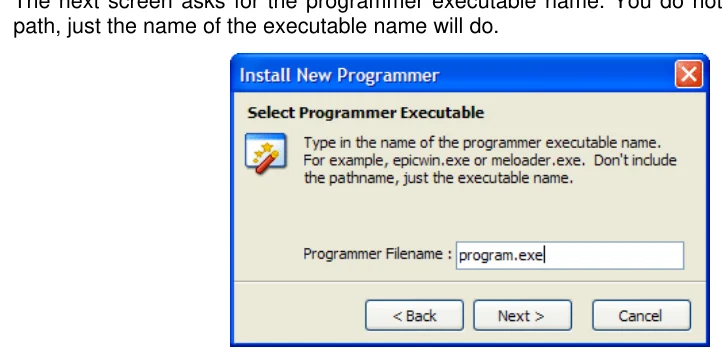
path, just the name of the executable name will do.
The next screen asks for the programmer executable name. You do not have to give the full
Select Programmer Path The next screen is the path to the programmer executable. You can let the IDE find it automatically, or you can select it manually.
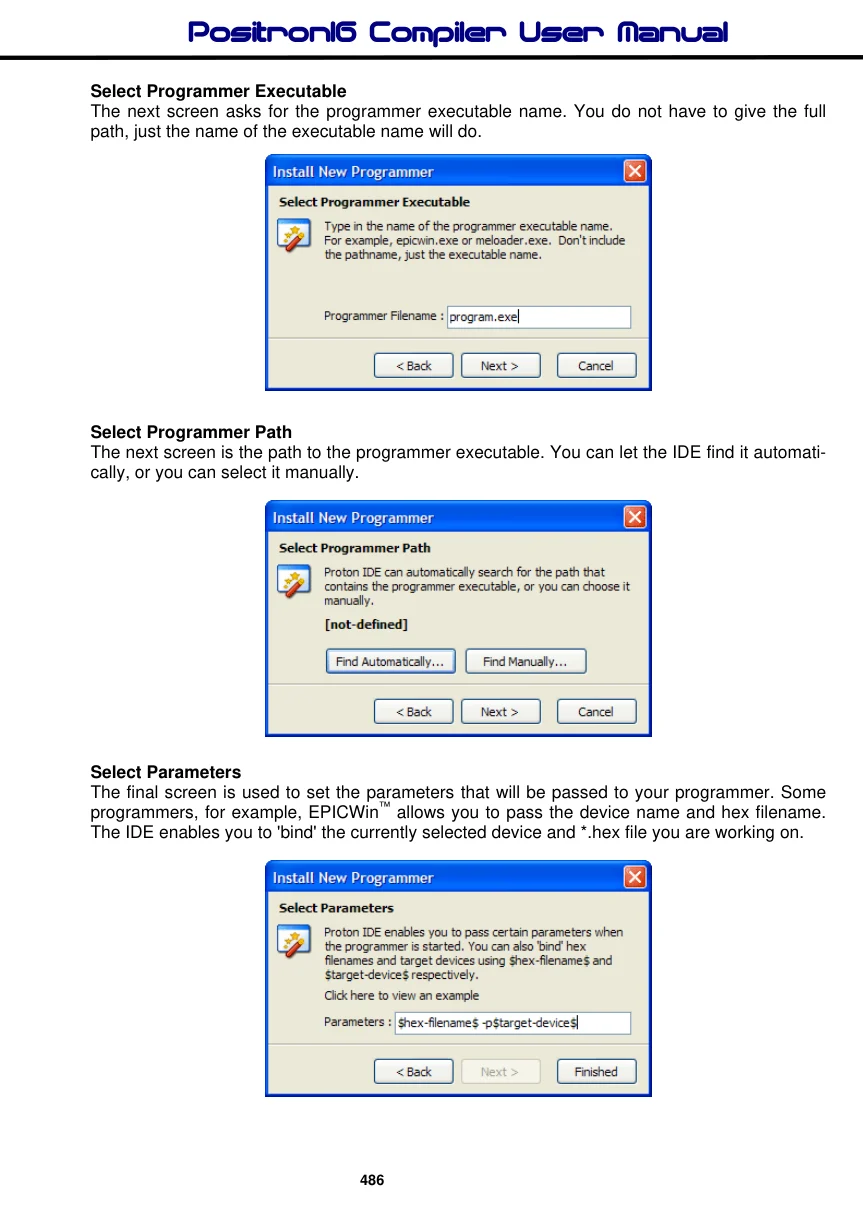
Select Parameters The final screen is used to set the parameters that will be passed to your programmer. Some programmers, for example, EPICWin™ allows you to pass the device name and hex filename. The IDE enables you to 'bind' the currently selected device and *.hex file you are working on.
For example, if you are compiling 'blink.bas' in the IDE using a 24FJ64GA002, you would want to pass the 'blink.hex' file to the programmer and also the name of the microcontroller you intend to program. Here is the EPICWin™ example: -
-pPIC$target-device$ $hex-filename$
When EPICWin™ is started, the device name and hex filename are 'bound' to $target-device$ and $hex-filename$ respectively. In the 'blink.bas' example, the actual parameter passed to the programmer would be: -
-p24FJ64GA002 blink.hex
Parameter Summary