Results View
The results view performs two main tasks. These are (a) display a list of error messages, should either compilation or assembly fail and (b) provide a summary on compilation success.
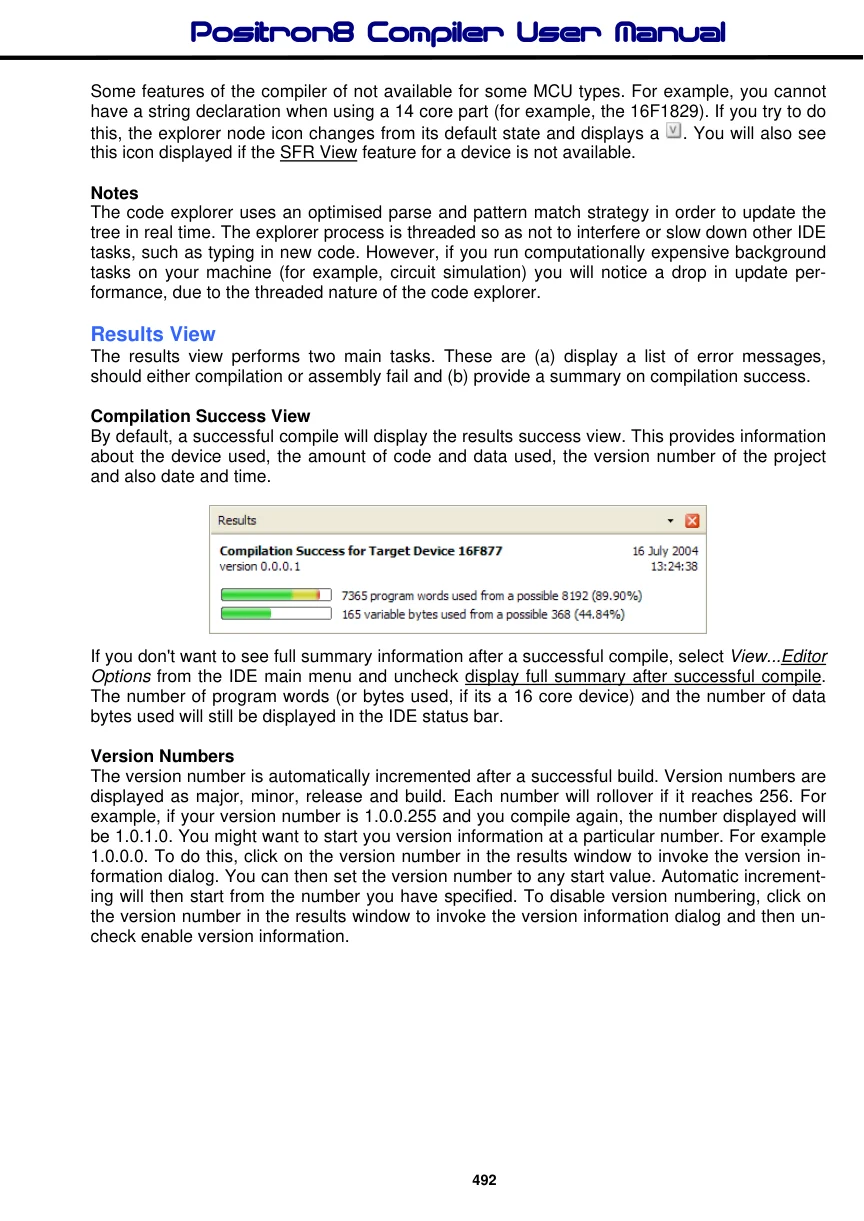
Compilation Success View By default, a successful compile will display the results success view. This provides information about the device used, the amount of code and data used, the version number of the project and also date and time.
If you don't want to see full summary information after a successful compile, select View...Editor Options from the IDE main menu and uncheck display full summary after successful compile. The number of program words (or bytes used, if its a 16 core device) and the number of data bytes used will still be displayed in the IDE status bar.
Version Numbers The version number is automatically incremented after a successful build. Version numbers are displayed as major, minor, release and build. Each number will rollover if it reaches 256. For example, if your version number is 1.0.0.255 and you compile again, the number displayed will be 1.0.1.0. You might want to start you version information at a particular number. For example 1.0.0.0. To do this, click on the version number in the results window to invoke the version information dialog. You can then set the version number to any start value. Automatic incrementing will then start from the number you have specified. To disable version numbering, click on the version number in the results window to invoke the version information dialog and then uncheck enable version information.
Date and Time Date and time information is extracted from the generated *.hex file and is always displayed in the results view.
Success - With Warnings! A compile is considered successful if it generates a *.hex file. However, you may have generated a number of warning messages during compilation. Because you should not normally ignore warning messages, the IDE will always display the error view, rather than the success view, if warnings have been generated.
To toggle between these different views, you can do one of the following click anywhere on the IDE status bar right click on the results window and select the Toggle View option.
Compilation Error View If your program generates warning or error messages, the error view is always displayed.
Clicking on each error or warning message will automatically highlight the offending line in the main editor window. If the error or warning has occurred in an include file, the file will be opened and the line highlighted. By default, the IDE will automatically highlight the first error line found. To disable this feature, select View...Editor Options from the IDE main menu and uncheck automatically jump to first compilation error. At the time of writing, some compiler errors do not have line numbers bound to them. Under these circumstances, the IDE will be unable to automatically jump to the selected line.
Occasionally, the compiler will generate a valid Asm file but warnings or errors are generated during assembly. The IDE will display all assembler warnings or error messages in the error view, but you will be unable to automatically jump to a selected line.
