Editor Options
The editor options dialog enables you to configure and control many of the IDE features. The window is composed of four main areas, which are accessed by selecting the General, Highlighter, Program Header and Online Updating tabs.
Show Line Numbers in Left Gutter Display line numbers in the editors left hand side gutter. If enabled, the gutter width is increased in size to accommodate a five digit line number.
Show Right Gutter Displays a line to the right of the main editor. You can also set the distance from the left margin (in characters). This feature can be useful for aligning your program comments.
Use Smart Tabs Normally, pressing the tab key will advance the cursor by a set number of characters. With smart tabs enabled, the cursor will move to a position along the current line which depends on the text on the previous line. Can be useful for aligning code blocks.

Convert Tabs to Spaces When the tab key is pressed, the editor will normally insert a tab control character, whose size will depend on the value shown in the width edit box (the default is four spaces). If you then press the backspace key, the whole tab is deleted (that is, the cursor will move back four spaces). If convert tabs to spaces is enabled, the tab control character is replaced by the space control character (multiplied by the number shown in the width edit box). Pressing the backspace key will therefore only move the cursor back by one space. Please note that internally, the editor does not use hard tabs, even if convert tabs to spaces is unchecked.
Automatically Indent When the carriage return key is pressed in the editor window, automatically indent will advance the cursor to a position just below the first word occurrence of the previous line. When this feature is unchecked, the cursor just moves to the beginning of the next line.
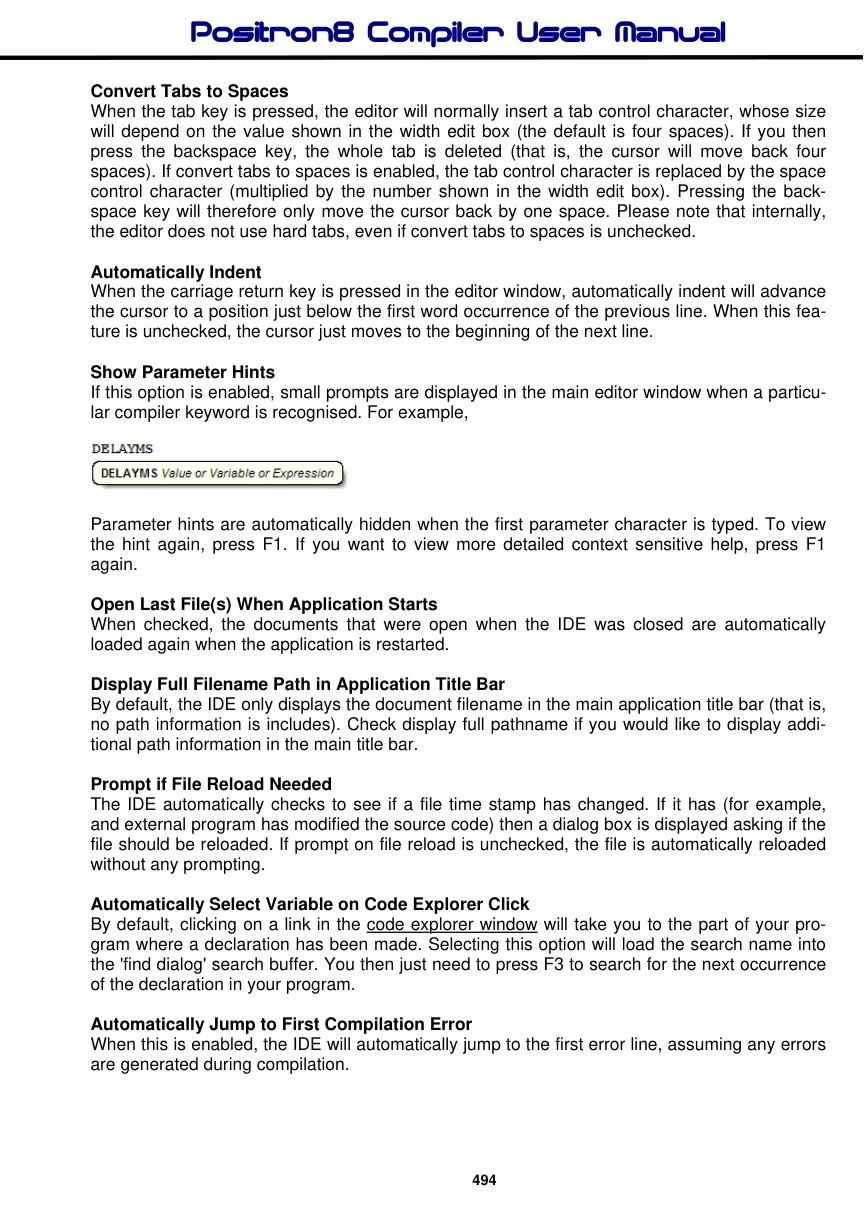
Show Parameter Hints If this option is enabled, small prompts are displayed in the main editor window when a particular compiler keyword is recognised. For example,
Parameter hints are automatically hidden when the first parameter character is typed. To view the hint again, press F1. If you want to view more detailed context sensitive help, press F1 again.
Open Last File(s) When Application Starts When checked, the documents that were open when the IDE was closed are automatically loaded again when the application is restarted.
Display Full Filename Path in Application Title Bar By default, the IDE only displays the document filename in the main application title bar (that is, no path information is includes). Check display full pathname if you would like to display additional path information in the main title bar.
Prompt if File Reload Needed The IDE automatically checks to see if a file time stamp has changed. If it has (for example, and external program has modified the source code) then a dialog box is displayed asking if the file should be reloaded. If prompt on file reload is unchecked, the file is automatically reloaded without any prompting.
Automatically Select Variable on Code Explorer Click By default, clicking on a link in the code explorer window will take you to the part of your program where a declaration has been made. Selecting this option will load the search name into the 'find dialog' search buffer. You then just need to press F3 to search for the next occurrence of the declaration in your program.
Automatically Jump to First Compilation Error When this is enabled, the IDE will automatically jump to the first error line, assuming any errors are generated during compilation.
Automatically Change Identifiers to Match Declaration When checked, this option will automatically change the identifier being typed to match that of the actual declaration. For example, if you have the following declaration:
Dim MyIndex as Byte
and you type 'myindex' in the editor window, the IDE will automatically change 'myindex' to 'My- Index'. Identifiers are automatically changed to match the declaration even if the declaration is made in an include file.
Please note that the actual text is not physically changed, it just changes the way it is displayed in the editor window. For example, if you save the above example and load it into wordpad or another text editor, it will still show as 'myindex'. If you print the document, the identifier will be shown as 'MyIndex'. If you copy and paste into another document, the identifier will be shown as 'MyIndex', if the target application supports formatted text (for example Microsoft Word). In short, this feature is very useful for printing, copying and making you programs look consistent throughout.
Clear Undo History After Successful Compile If checked, a successful compilation will clear the undo history buffer. A history buffer takes up system resources, especially if many documents are open at the same time. It's a good idea to have this feature enabled if you plan to work on many documents at the same time.
Display Full Summary After Successful Compile If checked, a successful compilation will display a full summary in the results window. Disabling this option will still give a short summary in the IDE status bar, but the results window will not be displayed.
Default Source Folder The IDE will automatically go to this folder when you invoke the file open or save as dialogs. To disable this feature, uncheck the 'Enabled' option, shown directly below the default source folder.