Code Explorer
The code explorer enables you to easily navigate your program code. The code explorer tree displays your currently selected processor, include files, declares, constants, variables, alias and modifiers, labels, macros and data labels.
Device Node
The device node is the first node in the explorer tree. It displays your currently selected processor type. For example, if you program has the declaration: -
Device = 24HJ128GP502then the name of the device node will be 24HJ128GP502. You don't need to explicitly give the device name in your program for it to be displayed in the explorer. For example, you may have an include file with the device type already declared. The code explorer looks at all include files to determine the device type. The last device declaration encountered is the one used in the explorer window. If you expand the device node, then all Special Function Registers (SFRs) belonging to the selected device are displayed in the explorer tree.
Include File Node
When you click on an include file, the IDE will automatically open that file for viewing and editing. Alternatively, you can just explorer the contents of the include file without having to open it. To do this, just click on the icon and expand the node. For example: -
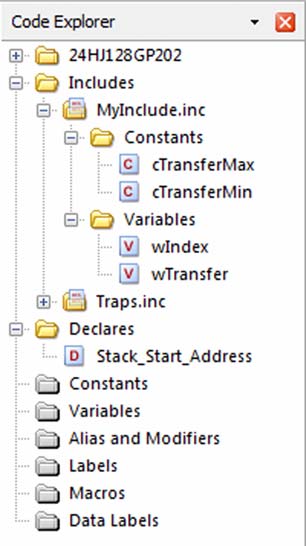
In the above example, clicking on the icon for MyInclude.inc has expanded the node to reveal its contents. It can now be see that MyInclude.inc has two constant declarations called cTransferMax and cTransferMin and also two variables called wIndex and wTransfer. The include file also contains another include file called Traps.inc. Again, by clicking the icon, the contents of the Traps.inc file can be seen, without opening the file itself. Clicking on a declaration name will open the include file and automatically jump to the line number. For example, if you were to click on cTransferMax, the include file MyInclude.inc would be opened and the declaration cTransferMax would be marked in the IDE editor window. When using the code explorer with include files, you can use the explorer history buttons to go backwards or forwards. The explorer history buttons are normally located to the left of the main editors file select tabs,
History back button History forward button
Additional Nodes
Declares, constants, variables, alias and modifiers, labels, macros and data label explorer nodes work in much the same way. Clicking on any of these nodes will take you to its declaration. If you want to find the next occurrence of a declaration, you should enable automatically select variable on code explorer click from View...Editor Options.
Selecting this option will load the search name into the 'find dialog' search buffer. You then just need to press F3 to search for the next occurrence of the declaration in your program. To sort the explorer nodes, right click on the code explorer and check the Sort Nodes option.