Compile and Program Toolbar
Compile Pressing this button, or F9, will compile the currently active editor page. The compile button will generate a *.hex file, which you then have to manually program into your microcontroller. Pressing the compile button will automatically save all open files to disk. This is to ensure that the compiler is passed an up to date copy of the file(s) your are editing.
Compile and Program Pressing this button, or F10, will compile the currently active editor page. Pressing the compile and program button will automatically save all open files to disk. This is to ensure that the compiler is passed an up to date copy of the file(s) your are editing.
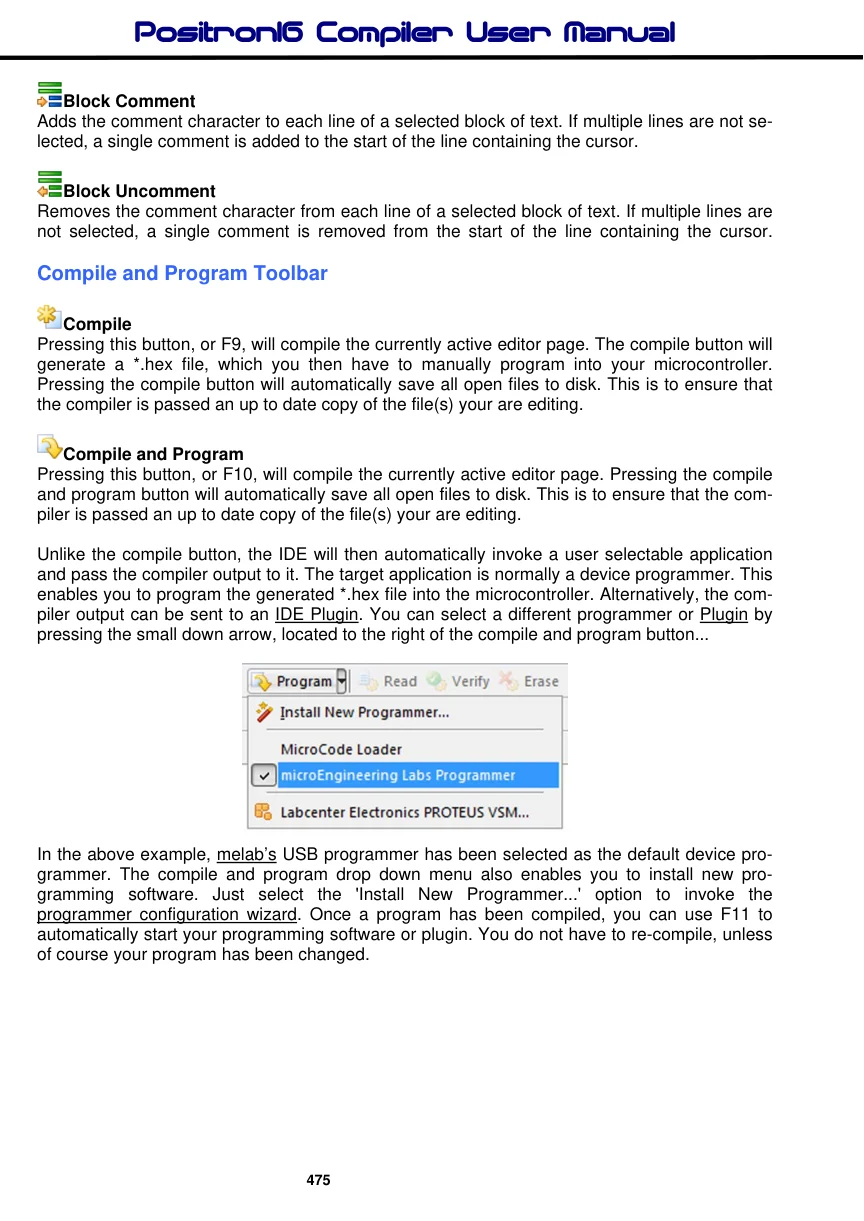
Unlike the compile button, the IDE will then automatically invoke a user selectable application and pass the compiler output to it. The target application is normally a device programmer. This enables you to program the generated *.hex file into the microcontroller. Alternatively, the compiler output can be sent to an IDE Plugin. You can select a different programmer or Plugin by pressing the small down arrow, located to the right of the compile and program button...
In the above example, melab’s USB programmer has been selected as the default device programmer. The compile and program drop down menu also enables you to install new programming software. Just select the 'Install New Programmer...' option to invoke the programmer configuration wizard. Once a program has been compiled, you can use F11 to automatically start your programming software or plugin. You do not have to re-compile, unless of course your program has been changed.