Circle
Syntax
Circle Set_Clear, Xpos, Ypos, Radius
Overview
Draw a circle on a graphic LCD.
Parameters
Set_Clear may be a constant or variable that determines if the circle will set or clear the pixels. A value of 1 will set the pixels and draw a circle, while a value of 0 will clear any pixels and erase a circle. If using a colour graphic LCD, this parameter holds the 16-bit colour of the pixel. Xpos may be a constant or variable that holds the X position for the centre of the circle. Can be a value from 0 to the X resolution of the display. Ypos may be a constant or variable that holds the Y position for the centre of the circle. Can be a value from 0 to the Y resolution of the display. Radius may be a constant or variable that holds the Radius of the circle. Can be a value from 0 to 65535.
KS0108 LCD example
' Draw circle at pos 63,32 with radius of 20 pixels on a KS0108 LCD

  Device = 24FJ64GA002             ' Select the device to compile for
   Declare Xtal = 8

  Declare LCD_Type = KS0108       ' Setup for a KS0108 graphic LCD
  Declare LCD_DTPort = PORTB.Byte0  ' Use the first 8-bits of PORTB
  Declare LCD_CS1Pin = PORTB.8
  Declare LCD_CS2Pin = PORTB.9
  Declare LCD_ENPin = PORTB.10
  Declare LCD_RSPin = PORTB.11
  Declare LCD_RWPin = PORTB.12

  Dim Xpos as Byte
  Dim Ypos as Byte
  Dim Radius as Byte
  Dim SetClr as Byte

  DelayMs 100                       ' Wait for things to stabilise
  Cls                              ' Clear the LCD
  Xpos = 63
  Ypos = 32
  Radius = 20
  SetClr = 1
  Circle SetClr, Xpos, Ypos, Radius
ILI9320 colour graphic LCD example
' Demonstrate the circle command with a colour LCD
'
  Device = 24EP128MC202               ' Select the device to compile for
  Declare Xtal = 140.03
'
' Setup the Pins used by the ILI9320 graphic LCD
'
  Declare LCD_DTPort = PORTB.Byte0    ' Use the first 8-bits of PORTB
  Declare LCD_CSPin = PORTB.8         ' Connect to the LCD's CS pin
  Declare LCD_RDPin = PORTB.9         ' Connect to the LCD's RD pin
  Declare LCD_RSPin = PORTB.10        ' Connect to the LCD's RS pin
  Declare LCD_WRPin = PORTA.3         ' Connect to the LCD's WR pin

  Include "ILI9320.inc"      ' Load the ILI9320 routines into the program

    Dim wRadius As Word      ' Create a variable for the circle's radius

'--------------------------------------------------------------------------
Main:
' Configure the internal Oscillator to operate the device at 140.03MHz
'
  PLL_Setup(76, 2, 2, $0300)

  Cls clYellow                        ' Clear the LCD with the colour yellow
  For wRadius = 0 To 319
     Circle clBrightCyan, 120, 160, wRadius ' Draw a series of circles
  Next
'--------------------------------------------------------------------------
' Configure for internal 7.37MHz oscillator with PLL
' OSC pins are general purpose I/O
'
  Config FGS = GWRP_OFF, GCP_OFF
  Config FOSCSEL = FNOSC_FRCPLL, IESO_ON, PWMLOCK_OFF
  Config FOSC = POSCMD_NONE, OSCIOFNC_ON, IOL1WAY_OFF, FCKSM_CSDCMD
  Config FWDT = WDTPOST_PS256, WINDIS_OFF, PLLKEN_ON, FWDTEN_OFF
  Config FPOR = ALTI2C1_ON, ALTI2C2_OFF
  Config FICD = ICS_PGD1, JTAGEN_OFF
Notes.
Because of the aspect ratio of the pixels on the KS0108 graphic LCD (approx 1.5 times higher than wide) the circle will appear elongated.
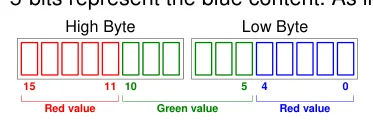
With an ILI9320 320x240 pixel colour graphic LCD, the colour is a 16-bit value formatted in RGB565, where the upper 5-bits represent the red content, the middle 6-bits represent the
Text in this figure or table
| High Byte | Low Byte | |||
| 15 | 11 10 | 5 | 4 | 0 |
| Red value | Green value | Red value |
green content, and the lower 5-bits represent the blue content. As illustrated below:
For convenience, there are several colours defined within the ILI9320.inc file. These are:
clBlack
clBrightBlue
clBrightGreen
clBrightCyan
clBrightRed
clBrightMagenta
clBrightYellow
clBlue
clGreen
clCyan
clRed
clMagenta
clBrown
clLightGray
clDarkGray
clLightBlue
clLightGreen
clLightCyan
clLightRed
clLightMagenta
clYellow
clWhite
More constant values for colours can be added by the user if required.